
Device guide
How to download TikTok videos on Mac in 2026
Simple steps for saving TikTok videos on macOS using Safari, Chrome, or Firefox with working examples.
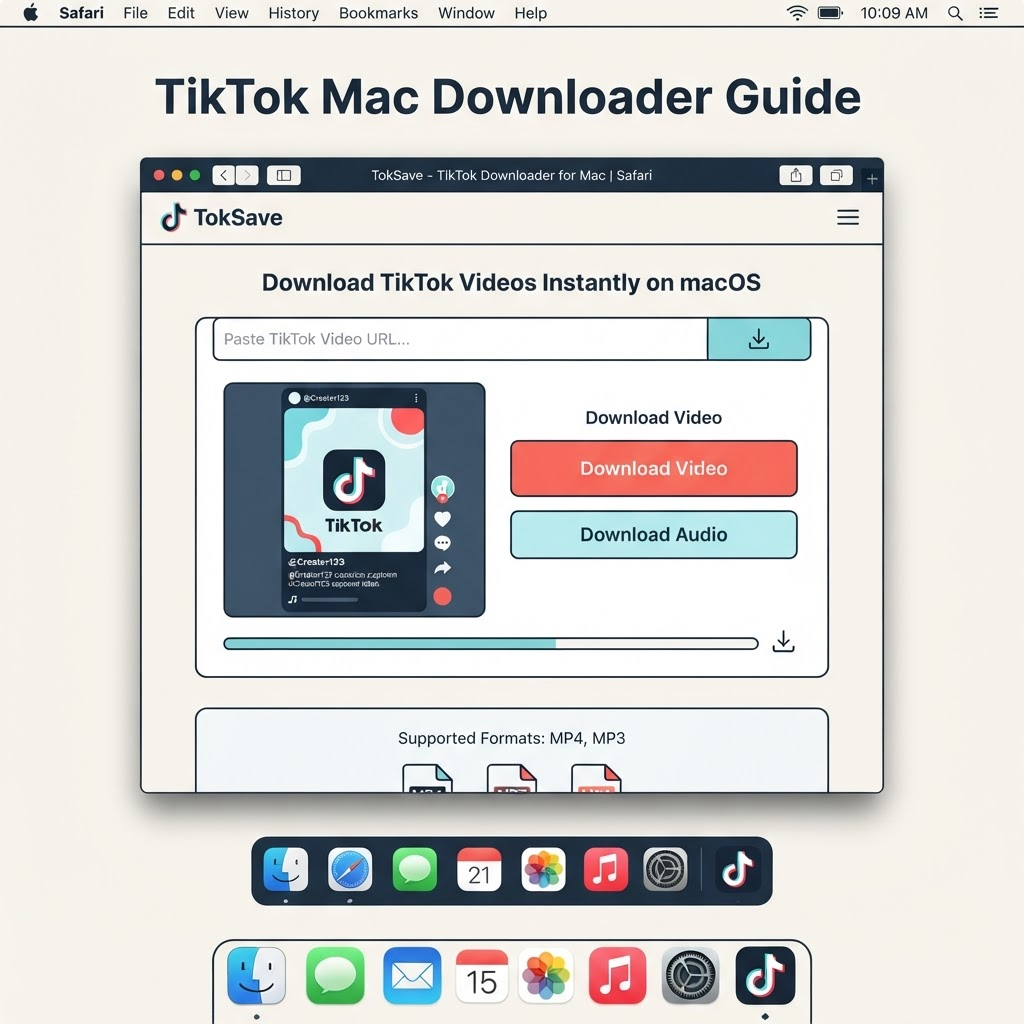
Why download TikTok videos on Mac
Creators archive their own videos, researchers collect reference material, and educators build offline resources. Whether you're preserving your own uploads or saving content with permission, a Mac gives you reliable control over the files.
Open TikTok and copy the link
Visit tiktok.com or open the TikTok app on your Mac. Find the video you want to save, click Share, and select Copy link. A typical address uses tiktok.com and includes the video ID.
Open TokSave in your browser
Use Safari, Chrome, Firefox, or Edge. Visit tok-save.online and paste the link into the input field at the top of the page.
Choose your format and save
TokSave will show available options. Select HD Video, SD Video, or Audio Only depending on what you need. Your browser will download the file to your Downloads folder by default, or you can choose another location before the download starts.
Find your saved video
Open Finder and click Downloads in the sidebar. The file will have a name like "video_download.mp4". You can rename it and move it to a project folder, Desktop, or an external drive.
- Keep videos in organized folders by project or date.
- Rename files with descriptive names like "username_date_topic.mp4".
- Store backups on an external drive or cloud storage.
- Include the original link and permission in a text note alongside the file.
Troubleshooting on Mac
If a download fails, check that the video link is a public post, not a private or deleted one. Copy a fresh link directly from the original post and try again. If your browser blocks the download, check your security settings or try a different browser.